

iOS SDK v7.0.0 introduces a major upgrade to the N-Genius Online iOS SDK experience, including a new Unified Payment Page, Apple Pay integration enhancements, AANI QR code payments, Click to Pay improvements, localization support, and updated developer tooling.
Overview
This release also introduces several UI enhancements and developer-focused improvements to simplify testing, environment configuration, and payment customization workflows.
Release Date: March 2026
Platform: iOS
Version: v7.0.0-beta
Distribution & Testing
Version 7.0.0 is available for early access testing through TestFlight.
Internal testers automatically receive builds, while external testers can join using a TestFlight invitation link shared by the team.
TestFlight Setup
| Step | Description |
|---|---|
| Install TestFlight | Download TestFlight from the Apple App Store |
| Accept Invite | Open the TestFlight invitation link and join the test group |
| Install Build | Install or update the Payment SDK Demo application |
| Trust the Build | No manual profile installation required |
| Configure Environment | Configure merchant environments manually or via QR import |
Note: TestFlight builds expire 90 days after upload.
Unified Payment Page & Apple Pay
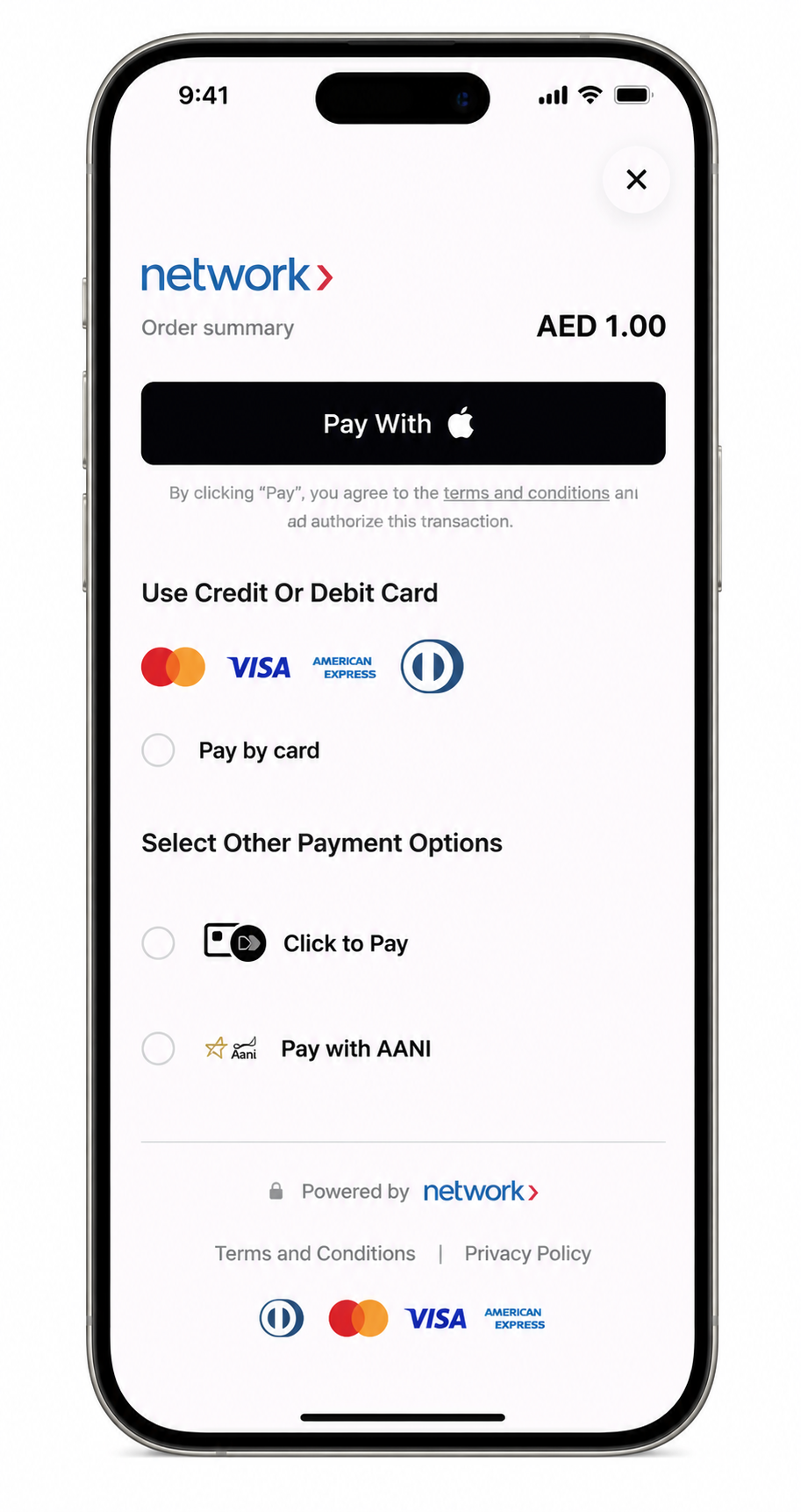
The SDK now includes a new Unified Payment Page that consolidates all supported payment methods into a single checkout experience.
Apple Pay is now fully integrated into the unified flow and is displayed automatically when enabled on the gateway outlet.
Supported Payment Methods
- Credit and Debit Cards
- Apple Pay
- AANI Pay
- Click to Pay
Apple Pay Support
When Apple Pay is enabled on the gateway outlet, the Apple Pay button is displayed automatically within the Unified Payment Page.
Customers authenticate using:
- Face ID
- Touch ID
The encrypted Apple Pay token is securely sent to the gateway for processing.
Note: The outlet must have the
APPLE_PAYwallet type enabled. TheDIRECT_APPLE_PAYflow is not supported by the SDK.
Dynamic Apple Pay Merchant ID Selection
The demo application automatically selects the correct Apple Pay merchant identifier based on:
- environment,
- region,
- and gateway configuration.
Supported regions include:
- UAE
- KSA
Unified Payment Page Preview
AANI QR Code Payments
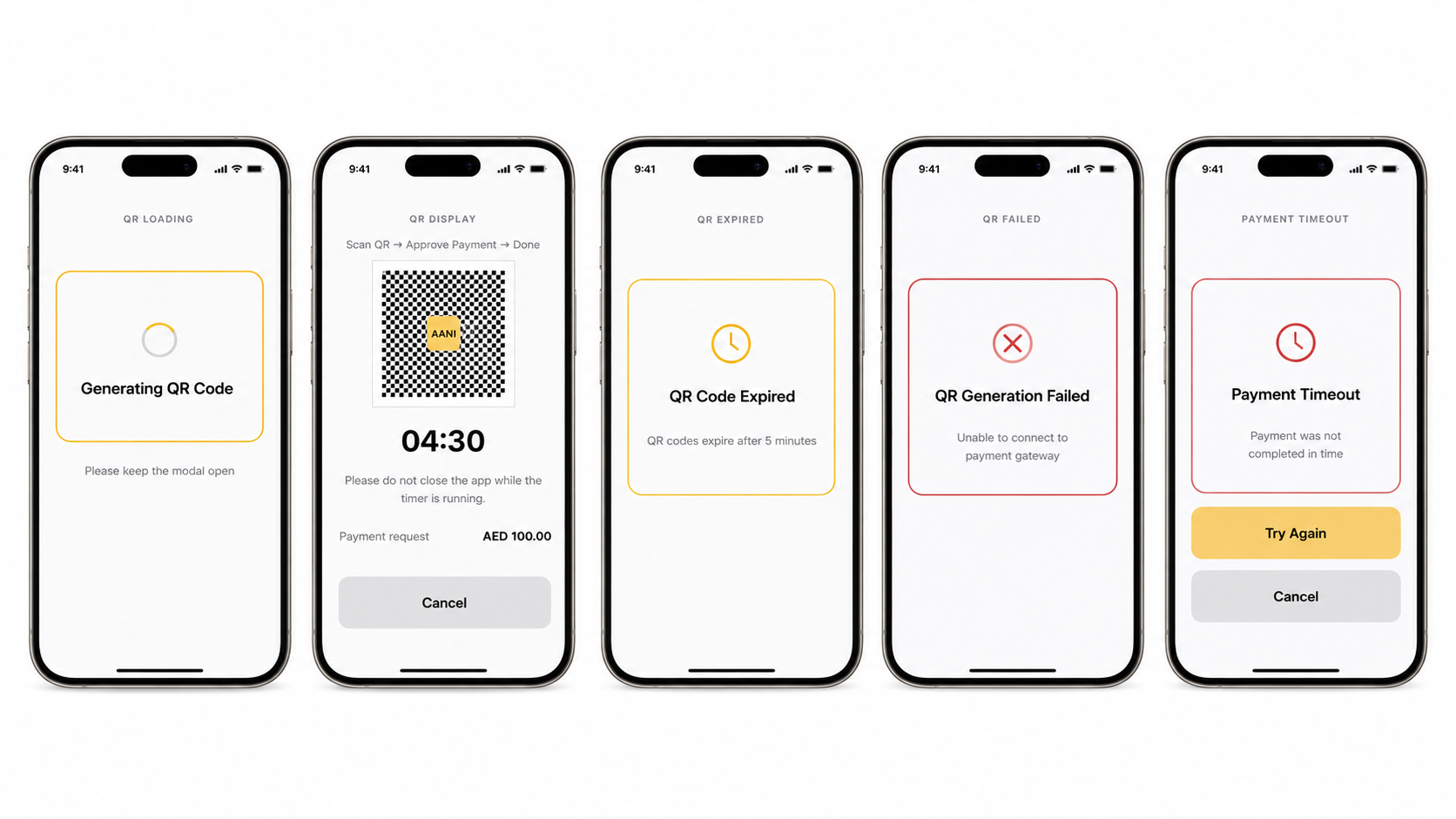
Customers can now complete payments using AANI QR codes as an alternative to alias-based payment flows.
The QR code is generated server-side and displayed for scanning using supported banking applications.
Payment Flow
- User selects QR Code from the AANI payment type dropdown
- User taps Generate QR Code
- SDK generates the QR code server-side
- QR code is displayed with a 5-minute countdown timer
- Customer scans the QR code using their banking application
- SDK polls payment status every 5 seconds
- Payment result is displayed automatically
AANI QR Payment Flow
flowchart TD

    %% --- Customer Actions ---
    subgraph Customer Interaction
        A["Select QR Code<br>from AANI payment dropdown"]
        B[Tap Generate QR Code]
        F["Scan QR Code<br>using banking app"]
    end

    %% --- QR Code Generation ---
    subgraph QR Code Generation
        C["SDK requests QR code<br>from server"]
        D[QR code generated]
        E["Display QR code<br>+ 5-minute timer"]
    end

    %% --- Payment Processing ---
    subgraph Payment Processing
        G["Poll payment status<br>(every 5 seconds)"]
        H{Payment successful?}
    end

    %% --- Expiry Handling ---
    subgraph Expiry Handling
        K{QR code expired?}
        L[Prompt user to regenerate QR code]
    end

    %% --- Outcome ---
    subgraph Payment Outcome
        I[Display payment success]
        J[Display payment failure]
    end

    %% --- Flow ---
    A --> B
    B --> C
    C --> D
    D --> E

    E --> F
    E --> K

    F --> G
    G --> H

    H -- Yes --> I
    H -- No --> J

    K -- Yes --> L
    K -- No --> F
AANI QR Screens
Label Updates
| Previous Label | Updated Label |
|---|---|
| Pay with AANI | Request to Pay |
| Paying {amount} | Payment request {amount} |
Click to Pay Enhancements
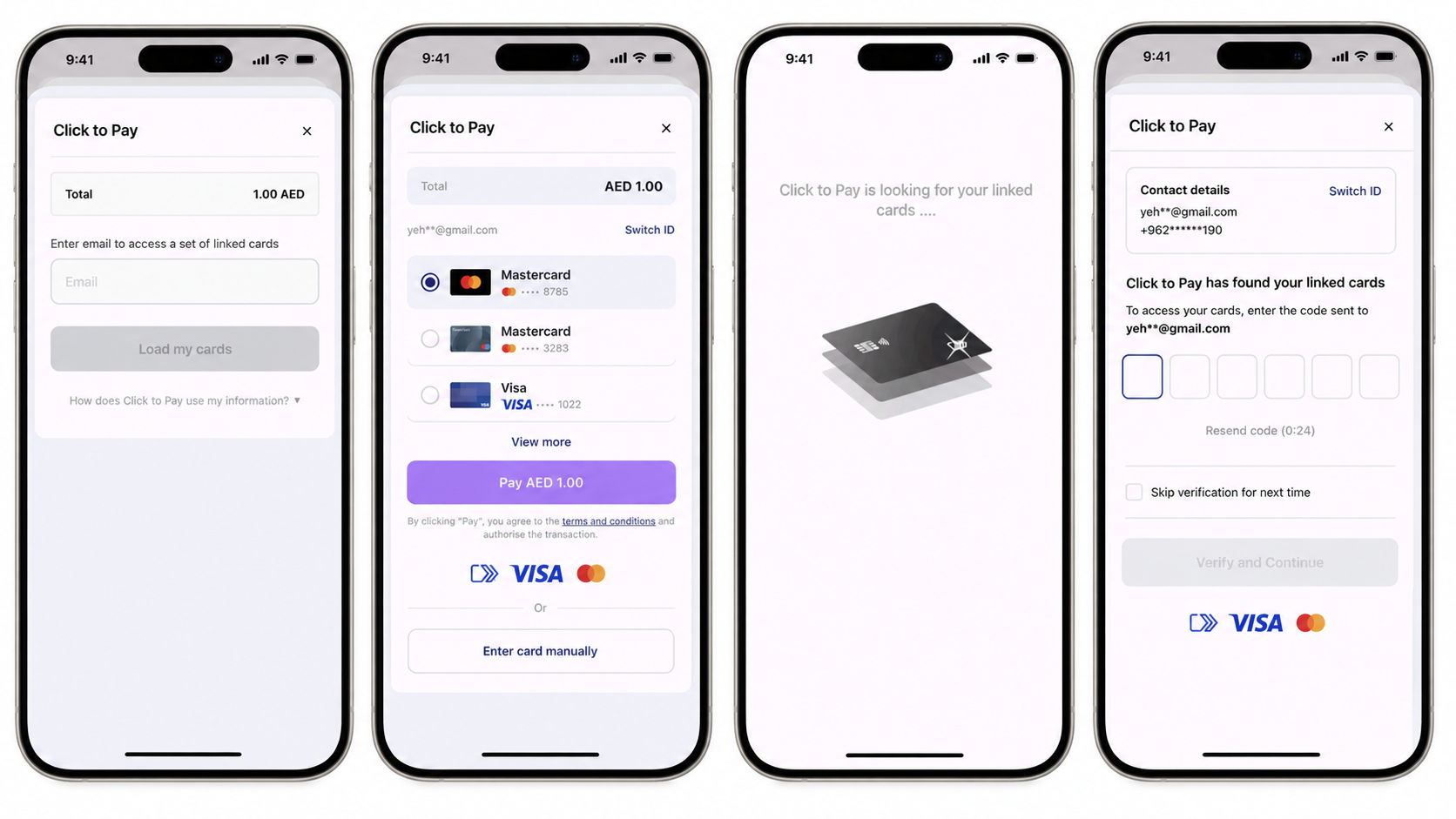
This release introduces several improvements to the Click to Pay experience.
| Enhancement | Description |
|---|---|
| RTL / Arabic Layout Improvements | OTP fields, card numbers, and logos now always display left-to-right in Arabic layouts |
| Switch ID View Improvements | Added expandable information section and improved identity switching |
| OTP Resend Improvements | Resend now correctly re-triggers identity validation |
| Email Storage Updates | Email is only stored when “Remember Me” is enabled |
| Card Recovery Improvements | Failed card additions now display meaningful error messages |
| External Link Behaviour | Legal links now open externally instead of inside WebViews |
| New Error Messaging | Added support for ACCT_INACCESSIBLE error handling |
Click to Pay Screens
Payment Page UI Refresh
Several improvements have been made to the payment experience to improve clarity and usability.
UI Improvements
- Order summary label added
- Larger and bolder amount formatting
- New CVV tooltip interaction
- Clickable Terms and Conditions links
- mada card logo support added
- Fully tappable AANI payment rows
- Simplified payment option layout
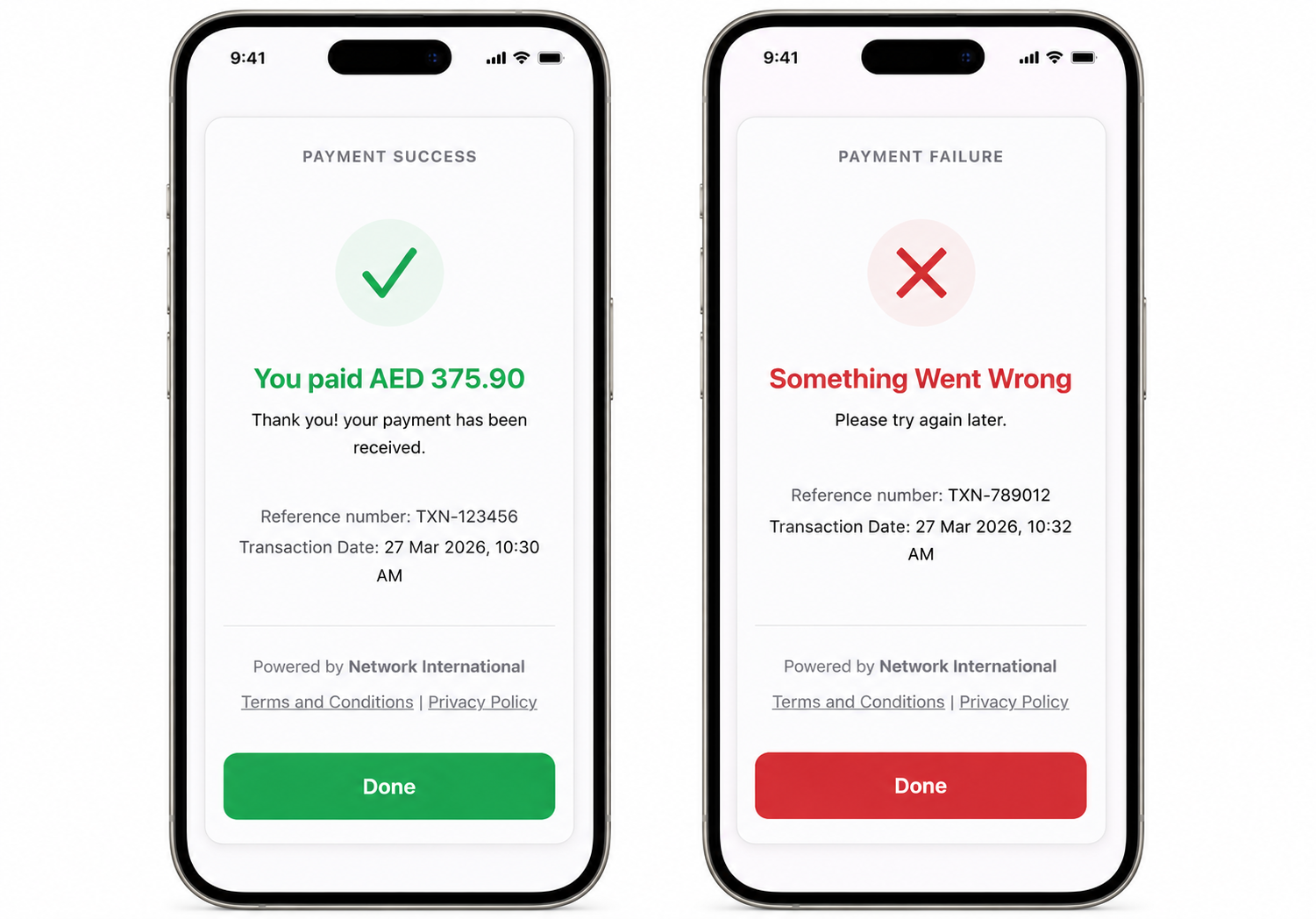
Payment Result Screen Redesign
The payment success and failure screens have been redesigned to improve visual clarity and consistency.
Result Screen Updates
| Previous Label | Updated Label |
|---|---|
| Transaction ID | Reference Number |
| Date / Time | Transaction Date |
- Green success titles
- Red failure titles
- Updated footer layout
- Card provider branding
- Clickable legal links
Payment Result Screen Preview
Localization
New French Language Support
French translations have been added across all SDK payment flows, including:
- Card payments
- AANI Pay
- Click to Pay
- Payment results
- Visa instalments
- Partial authorisation flows
Arabic Translation Updates
Updated Arabic translations include:
- AANI QR flows
- Payment messages
- Mobile number fields
- Reference number terminology
- Transaction date terminology
Updated English Terminology
| Previous Label | Updated Label |
|---|---|
| Transaction ID | Reference Number |
| Date / Time | Transaction Date |
| Scan QR code to complete payment | Scan QR → Approve Payment → Done |
| Pay with AANI | Request to Pay |
Technical Updates
| Area | Update |
|---|---|
| HTTP Support | Added DELETE method support |
| Device Fingerprinting | Added X-Payer-Fingerprint header |
| Constants Cleanup | Removed unused constants |
| CI/CD | GitHub Actions upgraded to v4 |
| Apple Pay Support | Unified Page support for APPLE_PAY wallet types |
| Payment Results | Result screen now displays orderReference |
| Auto Language Detection | SDK auto-detects device language |
| SDK Theming | Added customizable SDK color support |
| SDK Version | Updated to v7.0.0 |
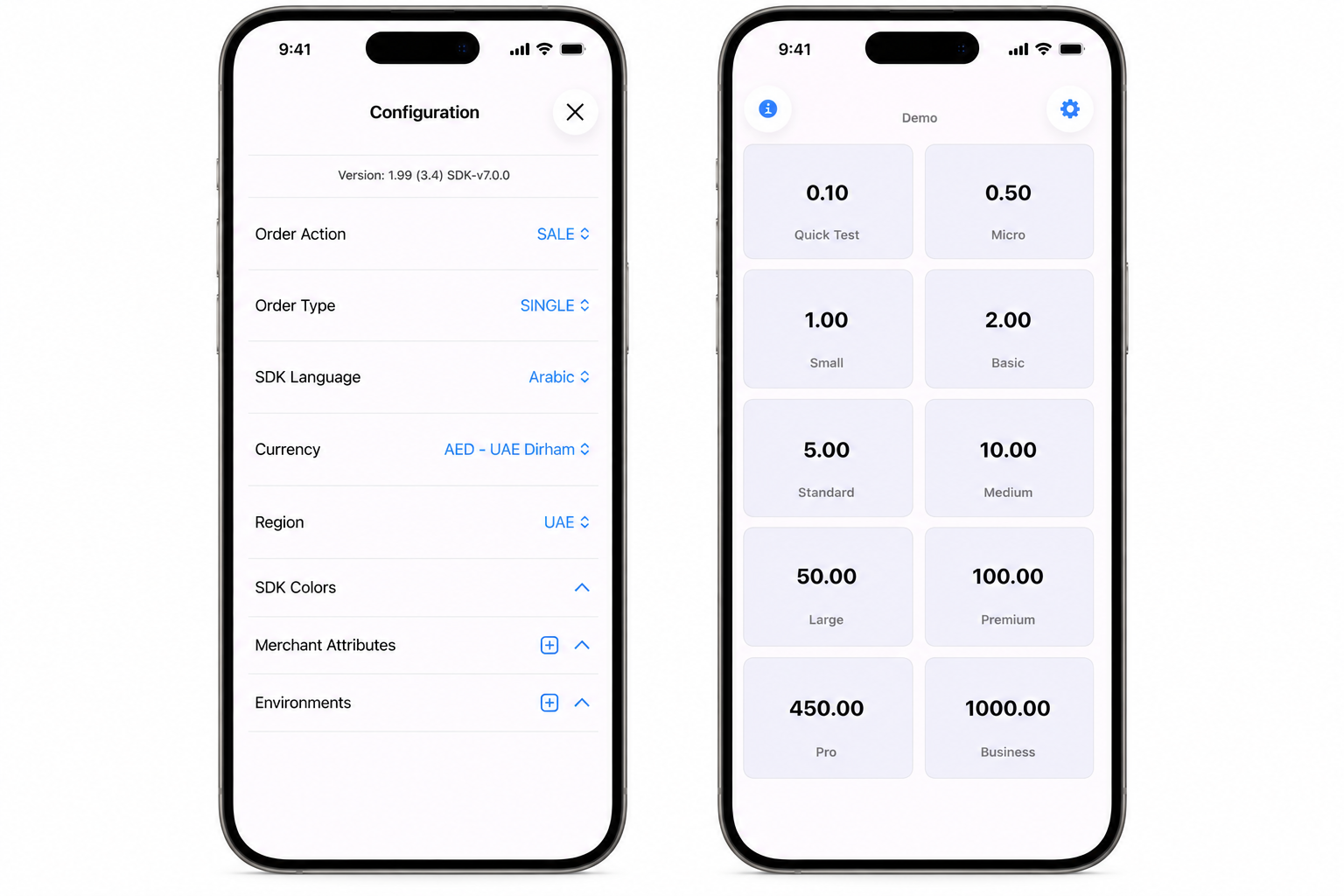
Demo App — Storefront & Environment QR Import
The demo application now includes QR-based environment configuration support.
Developers and testers can instantly import merchant credentials by scanning QR codes directly within the application.
Environment Management Features
- Add merchant environments
- Edit saved environments
- Delete environments
- Activate environments dynamically
- Import configurations using QR codes
Adding an Environment
Two methods are supported:
| Method | Description |
|---|---|
| Manual Entry | Configure environment details manually |
| QR Scan | Scan QR code containing credentials |
Supported Environment Fields
| Field | Description |
|---|---|
| Type | DEV, UAT, or PROD |
| Realm | Gateway realm identifier |
| Outlet Reference | Merchant outlet UUID |
| API Key | Secret key for order creation |
Configuration and Storefront Screens Preview
Additional Notes
Environment configurations are stored locally within the demo application and are not part of the SDK itself.
This release notes document was generated from the release/7.0.0-beta branch for iOS SDK version 7.0.0.