

Collect an online order in store
Hand over an order the customer reserved online, and take the payment at the counter when they collect it.
A customer can order from you online and collect the goods from your shop. When they order, the amount is reserved on their card but not taken. The terminal takes the payment when you hand the goods over, and only for what the customer actually leaves with. This is Click and Collect.
Find the order first: see Unified Commerce for the reference the customer brings and how to look it up.
Before you start
- The order must be reserved, not paid. Your online shop does this by creating the order as an authorisation, with the order action
AUTH, rather than as a sale. Your developer sets this: see Two stage payments. - Nobody takes the payment anywhere else first. Do not capture these orders in the N-Genius portal, and make sure your own systems do not capture them automatically. The terminal can only take what has not been taken already.
- Unified Commerce is switched on for your estate.
The customer brings the Unique Order Reference from the receipt they received when they placed the order, or the QR code in their confirmation email.
This is not Pre-Auth CompletionThe terminal's PRE-AUTH COMP button completes a pre-authorisation that was taken on the terminal, with the card present. An order reserved online is completed through Unified Commerce instead, using the reference. The customer does not need to present their card.
Hand the goods over only after APPROVED SUCCESSNothing is taken from the customer's card until the terminal shows APPROVED SUCCESS. If it does not, the customer has not paid. Keep the goods, and check the order again rather than repeating the same steps.
Choose what to do with the order
-
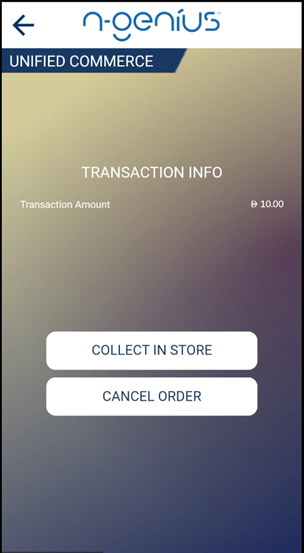
Once the order is found, the terminal shows TRANSACTION INFO with the Transaction Amount and two buttons.
| Button | Use it when |
|---|---|
| COLLECT IN STORE | The customer is taking some or all of the order. |
| CANCEL ORDER | The customer no longer wants any of it. |
-
COLLECT IN STORE does not take any money by itself. The next screen shows the Transaction Amount and the Capturable Amount, which is the most that can still be taken, with two buttons: FULL CAPTURE and PARTIAL CAPTURE.
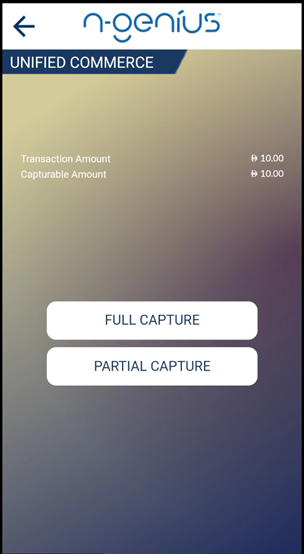
When the Capturable Amount is lower than the Transaction AmountPart of the order has already been dealt with, usually at an earlier collection. Only the Capturable Amount can be taken. Check with the customer what they have already collected before you go on.
The customer takes everything
-
Tap COLLECT IN STORE, then FULL CAPTURE.
-
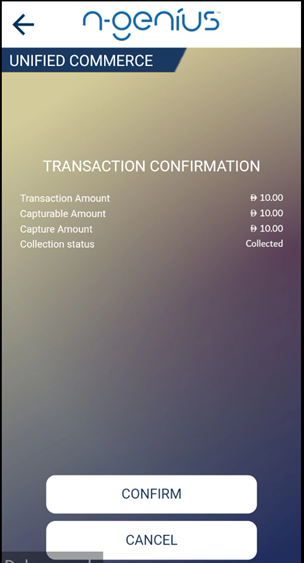
The confirmation screen shows the Transaction Amount, the Capturable Amount, the Capture Amount and the collection status Collected.
-
Tell the customer the Capture Amount. It is what their card will be charged.
-
Tap CONFIRM, or CANCEL to go back without taking anything.
-
The terminal shows APPROVED SUCCESS. Print the receipt with E-RECEIPT, tap FINISH, and hand the goods over.
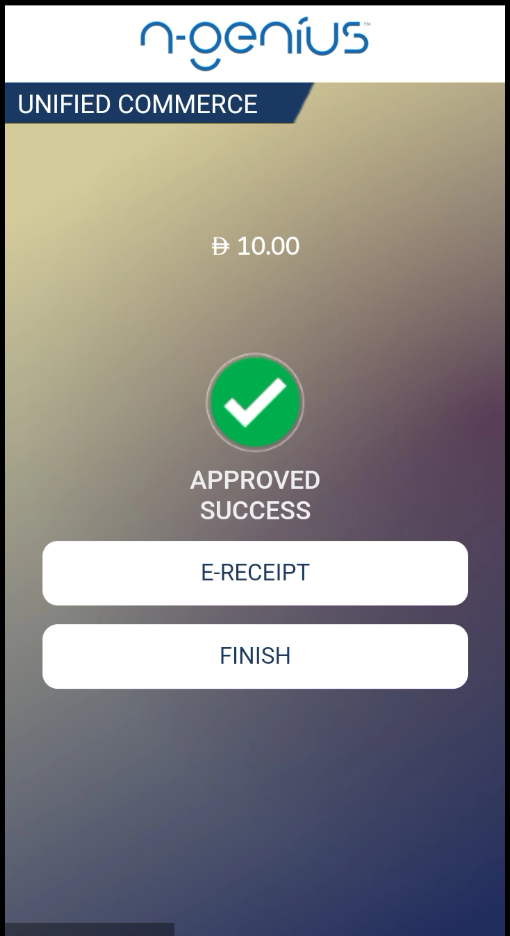
A full capture takes the whole Capturable Amount, and records Collected for you. There is no status to choose.
Example. A customer reserved an order of AED 10.00 online and collects all of it. The confirmation shows AED 10.00 three times, and AED 10.00 is taken from their card.
The customer takes part of the order
A partial capture asks for two things: how much money to take, and how much of the order is leaving the shop.
-
Tap COLLECT IN STORE, then PARTIAL CAPTURE.
-
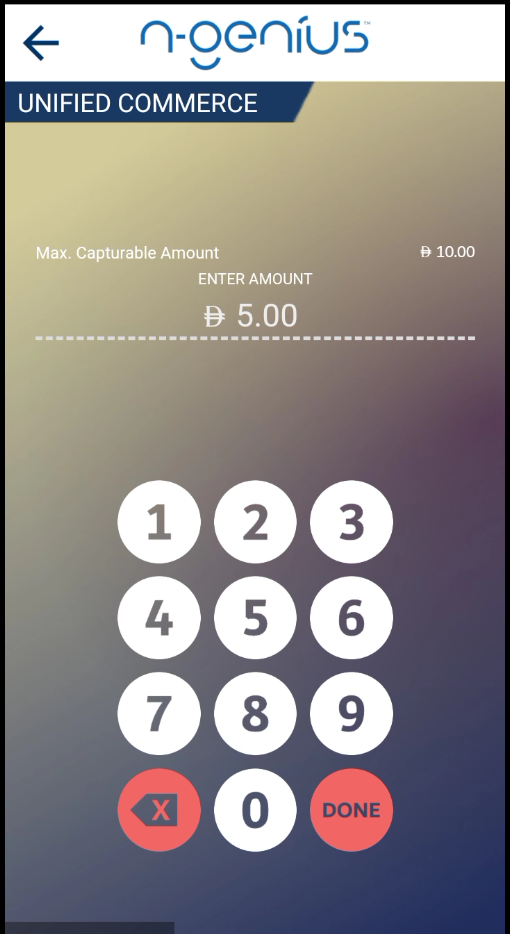
The terminal shows Max. Capturable Amount and a keypad. Key in the amount for the goods being collected, and tap DONE.
-
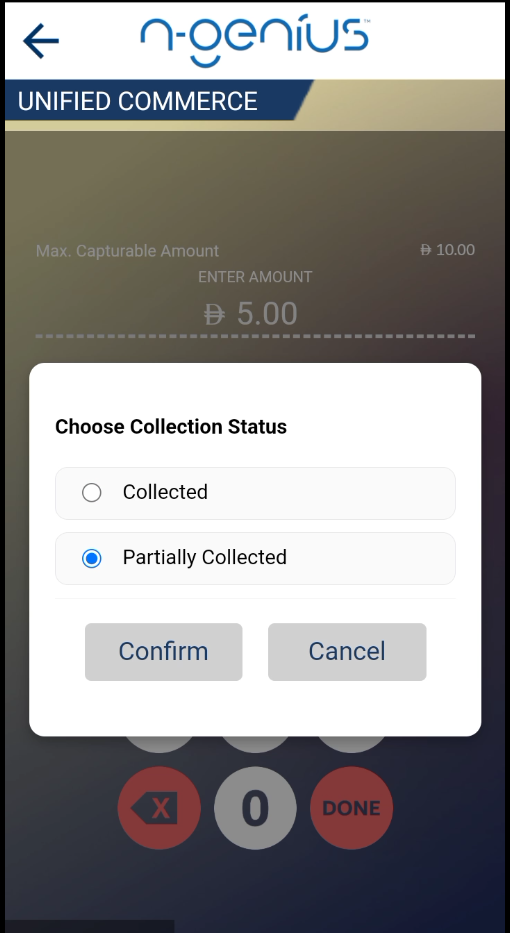
Choose the collection status: Collected if the customer is taking everything, Partially Collected if some of the order is staying behind. Tap Confirm.
-
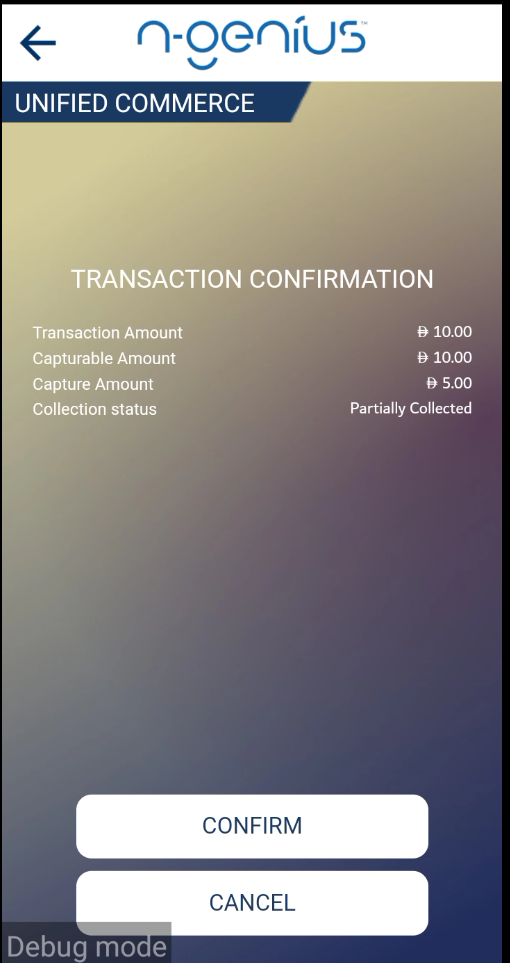
Check the confirmation screen. The Capture Amount is what you keyed in, and the collection status is what you chose.
-
Tap CONFIRM.
-
The terminal shows APPROVED SUCCESS. Print the receipt, tap FINISH, and hand the goods over.
You cannot take more than the Capturable Amount. The keypad is capped at the figure shown above it.
Example. A customer reserved AED 10.00 and collects half the order. You key in AED 5.00 and choose Partially Collected. AED 5.00 is taken from their card.
The customer no longer wants the order
Cancelling releases the reserved amount without taking any money. It covers the whole order.
-
On the TRANSACTION INFO screen, tap CANCEL ORDER.
-
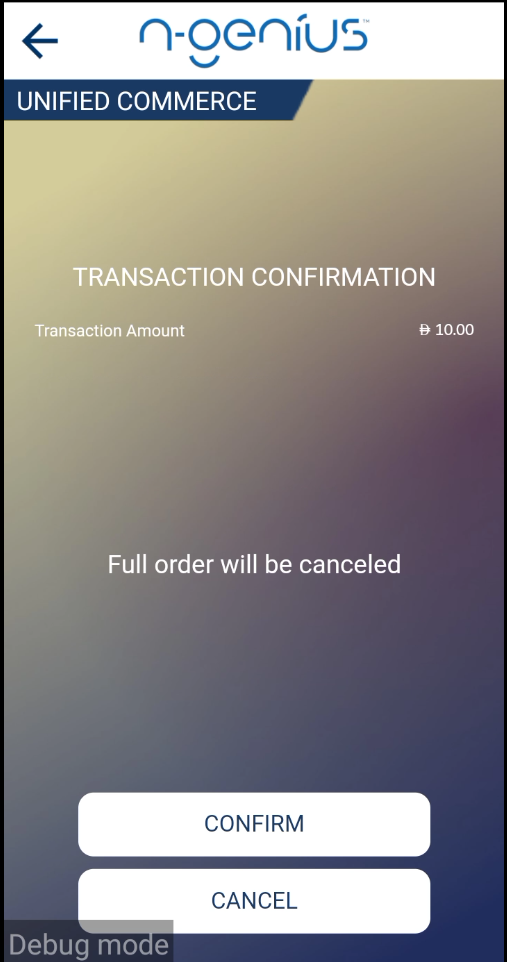
The confirmation screen shows the Transaction Amount and the line "Full order will be canceled". There is no amount to enter.
-
Tap CONFIRM, or CANCEL to go back without cancelling anything.
-
The terminal shows APPROVED SUCCESS. Tap FINISH.
There is no partial cancelIf the customer wants only some of the order, do not cancel it. Use PARTIAL CAPTURE for the part they are taking. A cancelled order cannot be collected afterwards: the customer would have to order again.
The reserved amount goes back to the customer's card, but how soon it disappears from their statement is up to their bank, not to you. Tell them so at the counter.
Collection status
The collection status records how much of the order left the shop, separately from how much money was taken.
| Status | Use it when |
|---|---|
| Collected | The customer has the whole order. |
| Partially Collected | Some of the order has not been collected. |
A full capture always records Collected. A cancelled order records no collection status.
How long an order can wait
The amount is reserved on the customer's card, not taken, and a reservation does not last indefinitely. After a period set by the customer's bank, it lapses and the money is released back to them. See Payment Actions.
Receipts and what the customer sees
The terminal prints a receipt for your records once the collection or the cancellation is approved. The cashier may also present the receipt to the customer.
Finding it afterwards
Collections and cancellations are recorded against the original order, and can be found in your reports via the same Unique Order Reference.
If something goes wrong
| What you see | What it means | What to do |
|---|---|---|
| The terminal will not accept the reference | The customer has given the long order number instead of the short code | Ask for the code in the XXXX-XXXX format. See Unified Commerce. |
| DECLINED with "Transaction not eligible" | The order cannot be collected or cancelled at the terminal | Do not hand the goods over. Check the order in the N-Genius portal. |
| The Capturable Amount is lower than the order | Part of the order has already been dealt with | Check with the customer what they have already collected. |
| The customer wants to cancel part of the order | There is no partial cancel | Use PARTIAL CAPTURE for the part they are taking. |
| There is no Unified Commerce tile on the terminal | Unified Commerce is not switched on for your estate | Speak to your Network International account team. |
Updated about 2 hours ago