
Unified Commerce Overview
Unified Commerce brings online and offline commerce into one connected ecosystem, enabling customers to transact seamlessly across channels.
Unified Commerce goes beyond omnichannel by integrating payments, inventory, orders, returns and refunds into a single real-time view, allowing customers to buy, exchange or refund seamlessly across any channel.
Via a Unified Commerce menu on your Network POS terminal, you can connect an order paid through N-Genius Online to your shop counter. You only need to find the original order using a short reference your customer brings with them, and the terminal does the rest. Nobody has to rebuild the sale by hand.
Two journeys are available: returning goods that were bought online, and collecting an order that was reserved online. See Return an online order in store and Collect an online order in store.
Before you can use it
- Your business takes payments both online, through N-Genius Online and on Network POS terminals. Unified Commerce joins the two, so it needs both.
- The order being looked up was placed through N-Genius Online: paid for, if the customer is returning it, or reserved, if they are collecting it.
- Unified Commerce is switched on in two places, and your relationship manager arranges both: for your N-Genius Online account, together with each journey you want to use, and on each terminal, where it adds the Unified Commerce menu.
- Your terminal is a Network POS terminal that can run the Unified Commerce menu.
What the customer brings
Every Unified Commerce journey starts with the Unique Order Reference. It is a short code in the format XXXX-XXXX, for example FY8S-9FV9, issued at the moment the customer pays for the order online, or reserves it for collection.
The customer receives it twice:
-
On the confirmation page shown straight after payment
In the confirmation email (as text and as a QR code)
Either form works at the terminal. The operator can key the code in, or scan the QR code from the customer's phone.
If you send payment links to yourself firstSome businesses create a payment link with their own email address and forward the link to the customer. The confirmation email then goes to you, not the customer, and the customer arrives without the reference. Send the link straight to the customer's email address, or pass the reference on to them yourself.
The reference is not the order numberThe confirmation page and the email also show a long reference such as
8d1c42e7-f877-42e5-a4ed-a5e50df8cc17. That is the order number, and the terminal will not accept it. Ask the customer for the short code in theXXXX-XXXXformat.
Find the order on the terminal
-
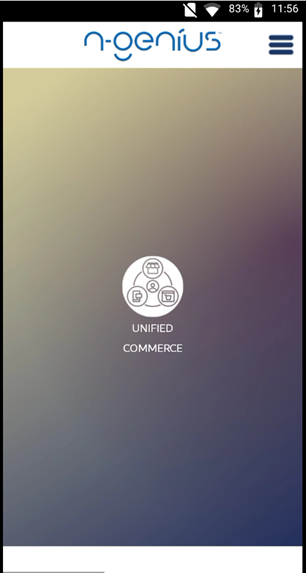
On the terminal home screen, select UNIFIED COMMERCE.
-
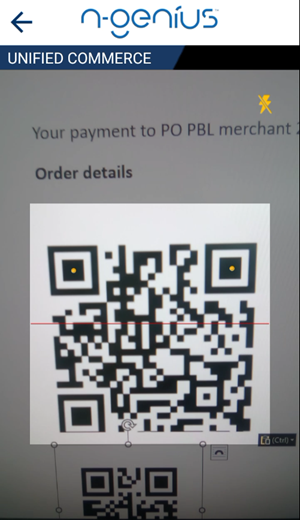
The terminal asks for the reference, in the format
XXXX-XXXX. Either key it in, or select SCAN BARCODE and point the camera at the QR code in the customer's email.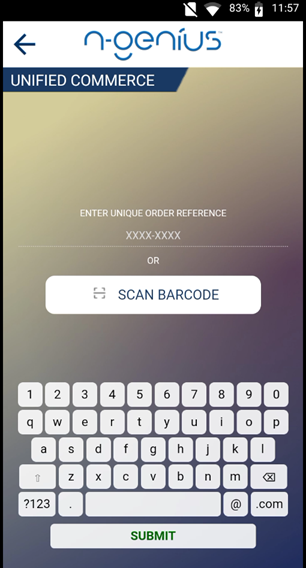
-
Tap SUBMIT.
-
The terminal fetches the order from N-Genius Online and shows what can be done with it. It works out which journeys the order is eligible for, and shows a button only for those.
The operator never types an amount at this stage. Every amount on the screens that follow comes from the original online order, which is what stops a return being keyed in for the wrong sum.
What you can do with the order
| Journey | What happens | Where |
|---|---|---|
| The customer is bringing goods back | The original sale is reversed or refunded | Return an online order in store |
| The customer is collecting an order they reserved online | The reserved payment is taken, in full or in part, or the order is cancelled | Collect an online order in store |
Collection status
If collection status is switched on for your account, each journey records a collection status against the order, so your reporting shows how much of the order actually changed hands. A return sets it to Returned or Partial Returned, and a collection sets it to Collected or Partially Collected.
You can also set a collection status by hand in the N-Genius portal: see Order Fulfilment.
Reporting
Unified Commerce transactions are recorded against the original order and can be found in your reporting by the same Unique Order Reference the operator used at the terminal. In the N-Genius portal, the order's history lists each step taken at the terminal, with the journey in brackets and the source shown as POS device.
Updated about 2 hours ago